




Written by Yehuda Smirnov
- TL;DR
- Introduction
- Motivation
- Usage
- I’ve Got Over 10k Files, Now What?
- Example Preset Queries
- Why It Works
- SharePoint API Internals
- Mitigations
- References & Credits
TL;DR
- ShareFiltrator is a Python tool that leverages SharePoint’s
_api/search/queryendpoint to:- Enumerate sensitive files which contain credentials
- Download said files in bulk, into respective folders named after site / OneDrive.
- Changes the last modified date of the files downloaded to match the file from SharePoint.
- You supply the
rtFaandFedAuthcookies from a logged-in session, run queries or use preset queries in a JSON file, and optionally download matching files. - We also discuss how to mitigate this and how to alert on SharePoint enumeration.
- Github repo: https://github.com/Friends-Security/Sharefiltrator
Introduction
My life is a learn in progress:
Spot something that doesn’t add up or feels unclear? Please let me know, and I’ll fix it.
ShareFiltrator is a command-line tool which leverages SharePoint’s search API to enumerate sensitive files and automatically downloads these files across SharePoint and OneDrive, using authenticated cookies to find secrets exposed by overly permissive sharing common in many Microsoft 365 tenants.
Motivation
Previously, SnaffPoint helped show how SharePoint search could be abused to enumerate files. But it was inspired on a separate tool (PNP-Tools), and did not fully integrate file downloading.
Rather than modifying SnaffPoint (which we tried but found it to be cumbersome) or chaining multiple tools, we decided to create our own tool – ShareFiltrator and dive into the SharePoint API ourself.
Also, in our specific case, we could not provide a JWT and use it to query SharePoint due to a specific implementation, instead we had to rely on the FedAuth and rtfa cookies for queries.
Usage
> python sharefiltrator.py -h

usage: sharefiltrator.py [-h] -d DOMAIN -r RTFA -f FEDAUTH -o OUTPUT_FILE [-q QUERY] [-rq REFINEMENT_FILTERS] [-s SAVE] [-t MAX_THREADS] [-m MAX_SIZE] [-p PRESET]

options:
  -h, --help            show this help message and exit
  -d DOMAIN, --domain DOMAIN
                        SharePoint domain (e.g., yourcompany.sharepoint.com)
  -r RTFA, --rtfa RTFA  rtFa cookie value
  -f FEDAUTH, --fedauth FEDAUTH
                        FedAuth cookie value
  -o OUTPUT_FILE, --output_file OUTPUT_FILE
                        Output file name for URLs
  -q QUERY, --query QUERY
                        Search query to use (default - finds sites & personal OneDrive folders which are shared)
  -rq REFINEMENT_FILTERS, --refinement_filters REFINEMENT_FILTERS
                        Refinement filters to use
  -s SAVE, --save SAVE  Folder name to download files found (example: 'files')
  -t MAX_THREADS, --max_threads MAX_THREADS
                        Max threads to use for file downloads (default: 10)
  -m MAX_SIZE, --max_size MAX_SIZE
                        Max file size to download in MB (default: 20 MB, example: 100)
  -p PRESET, --preset PRESET
                        Preset file with a line seprated list of queries to run
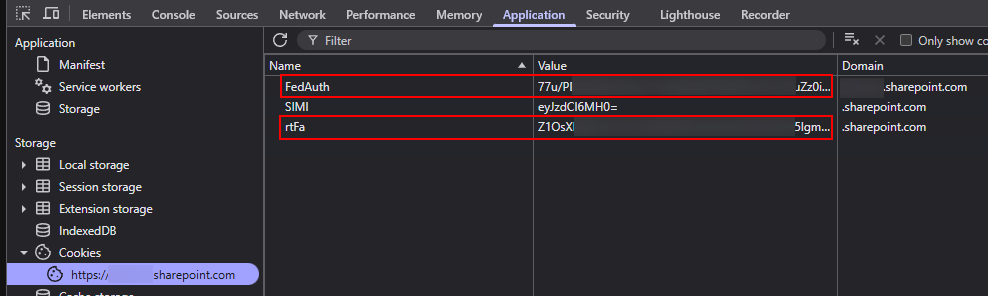
- The
rtFaandFedAuthcookies are taken straight from devtools under the SharePoint domain:
I’ve Got Over 10k Files, Now What?
A strategy we like to use, sorted from easiest way to obtain credentials, to hardest:
- Use Snaffler on the output directory to find low hanging fruits and credentials
- Use an AI to iterate and extract secrets
- Use VSCode to open the output directory and perform searches using
CTRL + SHIFT + F - Go through the output file (which contains the links, not the folder with all the files) and try finding interesting files by name
- Find interesting files and visit the SharePoint site to see other files which may have been missed (by removing the file name for example)
Example Preset Queries
ShareFiltrator supports a JSON-based preset file for repeatedly running multiple queries and comes with 2 presets by default:
Snaffpoint.jsonpreset – contains the Snaffpoint rules (inspired by Snaffler)Creds.jsonpreset – a fine-tuned preset I created to expand on the snaffpoint rules and find more secrets which were not picked up by the Snaffpoint preset
Running the presets:
python sharefiltrator.py -d yourcompany.sharepoint.com -p ./presets/snaffpoint.json -s saved_files -r <rtFa_cookie> -f <FedAuth_cookie> -o output.txt

python sharefiltrator.py -d yourcompany.sharepoint.com -p ./presets/creds.json -s saved_files -r <rtFa_cookie> -f <FedAuth_cookie> -o output.txt
This will cycle through each query defined in the preset JSON, store discovered paths in output.txt, and download everything into saved_files (respecting the max_size limit which is 20MB), sorted into folders by site name / onedrive user.
Another neat feature of ShareFiltrator is that it will take the last modified date of the file from SharePoint, and modify it on your file system, so you can clearly view if the file is relevant or not.
Here’s an example of how one of the queries from the presets looks like:
    {
      "Request": {
        "Name": "ConfigSecrets",
        "QueryText": "*",
        "EnableFql": "true",
        "RefinementFilters": "filetype:or(\"config\",\"cnf\",\"conf\",\"ini\",\"inf\",\"properties\",\"yml\",\"yaml\",\"toml\",\"xml\",\"json\",\"dist\",\"tfvars\")"
      }
    },
Why It Works
- Organization-Wide Access
Many SharePoint sites and OneDrive folders are set to “share with organization”, making documents accessible to anyone who can sign in. This includes even newly created Azure AD accounts, and obviously, users who fell victim to phishing campaigns. - Users Accidentally Sharing Entire Folders
It’s surprisingly common for users to select “share with entire organization” in Teams or OneDrive, not realizing they’ve exposed all files (including private ones), although it is literally stated. - Least Privilege Missing
In many environments, site permissions are not audited. Because of that, “everyone” or “all members” remain attached to sensitive sites that may contain credentials, keys, or PII.
SharePoint API Internals
This section talks a bit about the way the SharePoint API works, you can skip if this is of less interest to you.
At the core of ShareFiltrator is its direct use of SharePoint’s Search Rest API, specifically the endpoint at:
https://<your-domain>.sharepoint.com/_api/search/query
This API powers SharePoint’s own internal search and allows us to extract large sets of file metadata, avoiding most GUI restrictions. ShareFiltrator interacts with it by sending authenticated GET requests, constructed with carefully chosen parameters to extract as much data as possible.
GUI Restriction
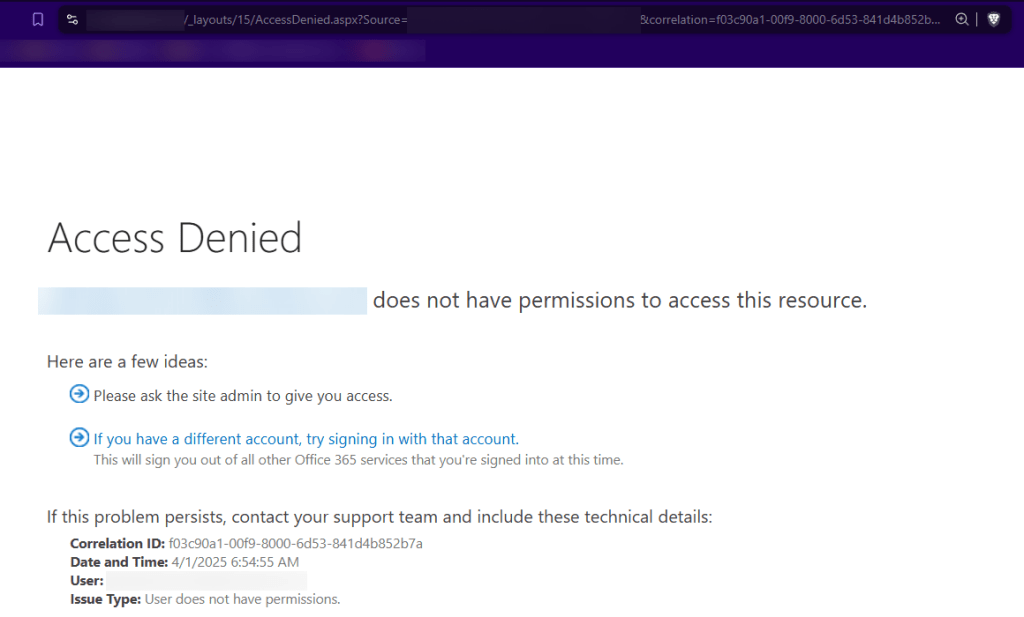
The following shows a restriction we faced, where just trying to access the top-level SharePoint endpoint (myapps -> SharePoint) via GUI showed an ‘Access Denied’ screen, while this might work for stopping easy and convenient enumeration, the API comes in to save the day.
Key Parameters
querytext
This is the actual search string. It accepts basic keywords, wildcards, field searches, and more. Some examples:- Search for all content (very broad):
querytext=* - Search for specific terms in filenames or content:
querytext="password" - Limit to SharePoint sites and personal document libraries associated with OneDrive:
querytext=contentclass:STS_Site OR contentclass:STS_Web OR contentclass:STS_ListItem_MySiteDocumentLibrary
- Search for all content (very broad):
rowlimit
The number of results to return in one request. SharePoint defaults to around 50–100 per page, but ShareFiltrator sets this to500to get the maximum allowed per query.startrow
Used for pagination. We track how many results we’ve already seen and incrementstartrowto keep pulling new data until we hit the end. This avoids any artificial cap from the API.sortlist
Controls result ordering. We default to:sortlist='LastModifiedTime:descending'This ensures the most recently modified files show up first—handy for finding recently uploaded secrets.refinementfilters
These help filter down by metadata like file types. For example:refinementfilters='filetype:or("env","json","pem","config")'enablefql=true
Enables Fast Query Language (FQL), which unlocks powerful logic for building more advanced patterns.
FQL Examples
When enablefql=true is used, you can write structured search expressions that go way beyond basic keyword matching. This is where ShareFiltrator gets especially useful for red teamers or defenders scanning for high-risk data.
Here are a few practical FQL examples used in presets:
- Inline Private Keys
NEAR(BEGIN, OR(RSA, OPENSSH, DSA, EC, PGP), PRIVATE, KEY, n=1)Searches for proximity-based matches around private key headers. Useful for catchingBEGIN RSA PRIVATE KEYor similar. - Database Credentials
OR("connectionstring", "db_password", "jdbc:", "mysql.connector.connect") - Generic Credentials or Secrets
OR("username", "password", "secret", "key", "credential") - AWS Keys / Access Tokens
OR(NEAR("aws_secret_access_key", "AKIA", n=10), "CF-Access-Client-Secret")
These queries can be combined with refinement filters to only search specific file types like .json, .yml, .env, or .config.
How ShareFiltrator Uses This
When you run ShareFiltrator, it dynamically builds the API request like this:
https://<domain>/_api/search/query?querytext='<your_query>'&rowlimit=500&startrow=<offset>&sortlist='LastModifiedTime:descending'
If FQL is enabled, or refinement filters are specified, those are appended as well. The tool continues issuing requests, bumping the startrow forward after each batch, until all available results are collected.
Another reason we chose not to modify the Snaffpoint tool was due to the complexity of adapting it to use pagination via startrow instead of its existing implementation.
For reasons that remain unclear – possibly related to the SharePoint version (a self-hosted instance, not cloud-based) or specific configuration settings -Snaffpoint failed to retrieve more than a single page of results, limited by the API.
Mitigations
While ShareFiltrator takes advantage of overly permissive file sharing and weak access controls in SharePoint and OneDrive, Microsoft provides solid defensive tools – if they’re properly configured.
Defender for Cloud Apps (DCA)
Microsoft Defender for Cloud Apps integrates with SharePoint and OneDrive to detect, label, and alert on sensitive content. When used with Microsoft Purview Information Protection, their ‘sensitive data discovery engine’ can automatically apply sensitivity labels to files containing things like:
- PII (personally identifiable information)
- Financial records
- Credentials
- Source code
- Other sensitive business data
Once a file is labeled as sensitive, DCA can generate alerts when that file is accessed – especially if it’s downloaded, externally shared, or opened by unexpected users. This means that even if a tool like ShareFiltrator is used, the access itself becomes a signal, and can trigger alerting workflows or incident response.
You can also define custom activity policies in DCA, such as:
- Alert when a large number of files are downloaded in a short time window
- Detect unusual download activity from high-risk IPs or service principals
In addition, real-time session controls can actively block downloads or enforce read-only browser sessions, adding another layer of protection against automated data exfiltration.
There are likely other tools instead of Defender for Cloud Apps which can perform the same tasks mentioned above, though this requires some research.
Access Control & Least Privilege
The most critical step in reducing exposure is applying strict access control to the sites and assets that are most likely to contain sensitive data – things like credentials, internal tools, backups, config files, and documentation with operational value.
Start by identifying:
- SharePoint sites used by IT, DevOps, Security, and Engineering teams
- Document libraries where scripts, key material, secrets, or database credentials might live
- OneDrive folders belonging to users with elevated access or administrative roles
Once identified, apply the principle of least privilege:
- Restrict access to only those who absolutely need it
Avoid default groups like “Everyone in the organization” or broadly scoped teams that inherit access unintentionally. - Avoid organization-wide sharing
The “share with organization” setting in Teams and OneDrive is often used out of convenience, but it opens files to anyone in the tenant. If those files include secrets, even by accident, they become accessible via ShareFiltrator or similar tools. (How to reference)
Locking down the high value assets first should hopefully help prevent or minimize damage against such attacks.
References & Credits
- Snaffpoint – base idea, some of the implementation & usage
- Snaffler – templates, original brilliant idea
- SharePoint Search REST API overview (MSDN)
- Introducing GraphRunner – also includes great post exploitation functionality.






 Security Friends' Research Blog